Ranked on Mac usefulness: native multi-display support by chip, DisplayLink where needed, charging headroom, and macOS setup friction.
The Best Docking Stations for MacBook (2026)
Docking stations for MacBook compared: DisplayLink triple-display docks, Thunderbolt docks, and the Mac display limits that decide between them.
Our top picks at a glance
Best MacBook dock for triple displays
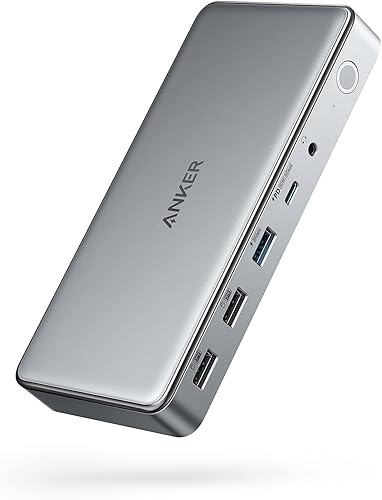 Anker 563 USB-C Docking Station (10-in-1)
MacBook owners, especially base Apple Silicon models, and Windows users who want three external monitors from one USB-C dock.
Best Thunderbolt dock for MacBook Pro
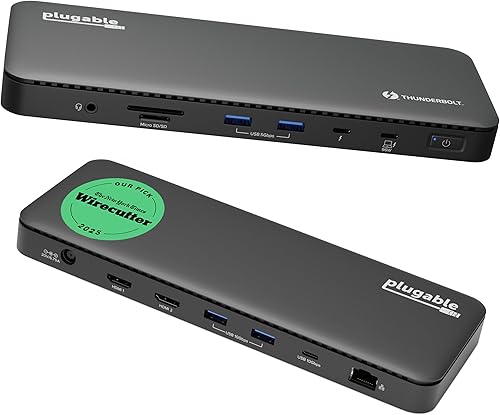 Plugable TBT4-UD5 Thunderbolt 4 Dock
Thunderbolt 4 and USB4 laptop owners who want dual monitors, fast storage, and full charging from one cable, without paying a premium brand tax.
Best portable MacBook dock
 OWC Thunderbolt Go Dock (11 Ports)
Hybrid workers and creatives who move between desks, studios, and locations and want one dock that goes with them.
Base Apple Silicon MacBook owners who want more than one external display should buy the Anker 563, because its DisplayLink software is the only route to three monitors on those machines. MacBook Pro owners with Pro or Max chips, who get two native displays, should buy the Plugable TBT4-UD5 for dual 4K over HDMI. Single-display MacBook desks are well served by the budget UGREEN Revodok Pro 10-in-1.
The picks, ranked
| Pick | Host connection | Laptop charging | Video | Buy |
|---|---|---|---|---|
| Best MacBook dock for triple displaysAnker 563 USB-C Docking Station (10-in-1) | USB-C with DisplayLink | 100W power delivery | 2x HDMI plus DisplayPort, up to 3 monitors | Check price |
| Best Thunderbolt dock for MacBook ProPlugable TBT4-UD5 Thunderbolt 4 Dock | Thunderbolt 4, 40Gbps | 100W power delivery, 96W certified | Dual 4K at 60Hz over HDMI, or single 8K | Check price |
| Best portable MacBook dockOWC Thunderbolt Go Dock (11 Ports) | Thunderbolt 4, 40Gbps | 90W power delivery | Up to single 8K at 60Hz, or dual 4K at 60Hz | Check price |
 Best premium MacBook dockBelkin CONNECT Pro Thunderbolt 4 Dock | Thunderbolt 4, 40Gbps | 90W power delivery | Dual 4K at 60Hz over HDMI 2.0 | Check price |
 Best budget MacBook dockUGREEN Revodok Pro 10-in-1 USB-C Docking Station | USB-C with DisplayPort Alt Mode | 100W power delivery | Dual 4K at 60Hz over HDMI | Check price |
Best MacBook dock for triple displays
Anker 563 USB-C Docking Station (10-in-1)
The three-monitor trick for MacBooks: DisplayLink smarts that give even a base Apple Silicon Mac a triple-display desk.
Strengths
- DisplayLink technology drives up to three monitors from a single USB-C connection, including on base Apple Silicon MacBooks that otherwise support only one external display.
- The 100W laptop charging and a separate 30W phone charging port keep the whole desk powered, which is more generous than many triple-display docks manage.
- Two HDMI ports plus a DisplayPort give flexible monitor combinations, so mixed old and new monitors can all join the same desk.
Limitations
- DisplayLink requires a driver install and, on macOS, screen-recording permission, which is an extra setup step that pure Thunderbolt docks avoid.
- The secondary HDMI and DisplayPort outputs do not support HDCP content, so some protected streaming video will not play on those monitors.
- Single-monitor resolution tops out below the best Thunderbolt docks, so buyers chasing one huge high-refresh display should look elsewhere.
What owners report
Commonly praised
- Owners like getting three extended displays from a MacBook that otherwise allows only one
- Owners like the generous laptop and phone charging packed into one dock
- Owners like the flexible mix of HDMI and DisplayPort for mixed monitor collections
Common complaints
- Owners dislike the extra driver install and permission steps before the first use
- Owners are caught out when protected streaming video refuses to play on the secondary outputs
- Owners note that a single large display does not reach the sharpness of pricier Thunderbolt rivals
Recurring themes from owner reviews on retailers and forums, summarised by our editors. Updated October 2026.
| Host connection | USB-C with DisplayLink |
|---|---|
| Laptop charging | 100W power delivery |
| Video | 2x HDMI plus DisplayPort, up to 3 monitors |
| Data | 5Gbps USB ports |
| Compatibility | macOS and Windows, DisplayLink driver required |
Best for: MacBook owners, especially base Apple Silicon models, and Windows users who want three external monitors from one USB-C dock.
Skip if: You refuse to install a DisplayLink driver, since this dock's multi-monitor magic depends on that software running on the laptop.
Best Thunderbolt dock for MacBook Pro
Plugable TBT4-UD5 Thunderbolt 4 Dock
The Thunderbolt dock most people should buy: dual 4K over HDMI, 100W charging, and a price that embarrasses fancier rivals.
Strengths
- Dual 4K monitors at 60Hz over two HDMI ports is the setup most desk workers actually want, and this dock delivers it without adapters, dongles, or a second cable.
- The 100W power delivery, 96W certified, charges even larger laptops under load while the dock still runs drives, displays, and peripherals at full speed.
- Thunderbolt certification and Intel Evo verification mean the dock behaves predictably across brands, which matters when the laptop and the dock come from different makers.
Limitations
- It is a Thunderbolt-first dock, so owners of older or basic USB-C laptops get a reduced experience and should buy a USB-C dock instead.
- The slim, low-profile case looks neat but offers no vertical stand or mounting option, so it sits flat on the desk and takes up its full footprint.
- Gigabit Ethernet, rather than 2.5GbE, is the one place where pricier Thunderbolt docks pull ahead, and it matters if your wired network is faster than a gigabit.
What owners report
Commonly praised
- Owners like how two monitors come up over plain HDMI without hunting for adapters
- Owners like the steady laptop charging that holds up while drives and displays are all running
- Owners like the calm, predictable behaviour when waking the laptop and reconnecting peripherals
Common complaints
- Owners grumble that the wired network tops out below the faster standard some rival docks offer
- Owners wish the flat case came with a stand or a mounting option for tighter desks
- Owners note that plain USB-C laptops get only part of what this Thunderbolt dock can do
Recurring themes from owner reviews on retailers and forums, summarised by our editors. Updated October 2026.
| Host connection | Thunderbolt 4, 40Gbps |
|---|---|
| Laptop charging | 100W power delivery, 96W certified |
| Video | Dual 4K at 60Hz over HDMI, or single 8K |
| Ports | 13 total, including downstream Thunderbolt 4, USB-C, USB-A, SD and microSD |
| Network | Gigabit Ethernet |
Best for: Thunderbolt 4 and USB4 laptop owners who want dual monitors, fast storage, and full charging from one cable, without paying a premium brand tax.
Skip if: Your laptop has only a plain USB-C port with no Thunderbolt or USB4 support, since you will not get the dual-display and bandwidth benefits that justify this dock.
Best portable MacBook dock
OWC Thunderbolt Go Dock (11 Ports)
The dock that travels: a full Thunderbolt 4 desk in one box, with the power supply built in and no brick to carry.
Strengths
- The built-in power supply is the headline: no heavy brick to pack, lose, or untangle, just a standard power cable between the dock and the wall.
- A genuine 11-port Thunderbolt 4 feature set, including 2.5GbE networking and an HDMI 2.1 port, travels in a case small enough to fit a laptop bag.
- Thunderbolt Share support, with its licence included, lets two computers share the dock's peripherals, which is a rare and useful trick for shared desks.
Limitations
- The 90W laptop charging is enough for most laptops but falls short of the 100W and 130W rivals for the largest machines under load.
- One HDMI port means the second monitor needs a Thunderbolt or USB-C video connection, so a two-HDMI desk needs an adapter.
- The compact case runs warm under a full load of drives and displays, which is normal for the design but worth knowing before tucking it into a tight space.
What owners report
Commonly praised
- Owners love travelling without a power brick, since the supply lives inside the case
- Owners like the faster wired networking, which suits large photo and video transfers
- Owners like the sharing feature that lets two computers use the same desk gear
Common complaints
- Owners wish laptop charging reached the higher figure of the fixed-desk rivals
- Owners note that a second monitor needs a Thunderbolt or USB-C video link rather than a second HDMI port
- Owners mention the case feeling warm when every port is busy at once
Recurring themes from owner reviews on retailers and forums, summarised by our editors. Updated October 2026.
| Host connection | Thunderbolt 4, 40Gbps |
|---|---|
| Laptop charging | 90W power delivery |
| Video | Up to single 8K at 60Hz, or dual 4K at 60Hz |
| Network | 2.5 Gigabit Ethernet |
| Power | Built-in power supply, no external brick |
Best for: Hybrid workers and creatives who move between desks, studios, and locations and want one dock that goes with them.
Skip if: Your desk never moves, since the built-in power supply and compact design cost more than a fixed dock with the same ports.
Best premium MacBook dock
Belkin CONNECT Pro Thunderbolt 4 Dock
The polished premium pick: twelve ports, dual 4K, and a build that looks at home in a design-led office.
Strengths
- Dual HDMI 2.0 ports giving dual 4K at 60Hz suit the common two-monitor desk without needing USB-C video adapters, which keeps the setup simple.
- The port mix is thoughtfully split between fast 10Gbps ports for storage and slower ports for keyboards and mice, so nothing competes for bandwidth it does not need.
- A 120W power supply and an included 0.8m Thunderbolt 4 cable mean the dock works properly out of the box, with no separate cable purchase to discover later.
Limitations
- At its premium positioning it is hard to justify over the Plugable TBT4-UD5 unless the Belkin design, support, or specific port layout matters to you.
- The 90W laptop charging is a step below the 100W and 130W rivals here, which can matter for the largest laptops under heavy load.
- Its single downstream Thunderbolt 4 port is one fewer than some rivals offer, so daisy-chaining several Thunderbolt devices needs more planning.
What owners report
Commonly praised
- Owners like the tidy split of fast and everyday ports, which keeps storage clear of keyboard traffic
- Owners like the dual HDMI outputs that suit a two-monitor desk with no adapters
- Owners like the included cable and power supply, which remove a surprise extra purchase
Common complaints
- Owners feel the asking level is hard to justify next to cheaper Thunderbolt docks with similar everyday performance
- Owners wish laptop charging reached the higher figure offered by some rivals
- Owners note that a single downstream Thunderbolt port limits daisy-chaining plans
Recurring themes from owner reviews on retailers and forums, summarised by our editors. Updated October 2026.
| Host connection | Thunderbolt 4, 40Gbps |
|---|---|
| Laptop charging | 90W power delivery |
| Video | Dual 4K at 60Hz over HDMI 2.0 |
| Ports | 12 total, including 2x Thunderbolt 4, USB-C, USB-A, SD, Ethernet, audio |
| In the box | 120W power supply, 0.8m Thunderbolt 4 cable |
Best for: Buyers who want a premium Thunderbolt 4 dock with dual HDMI, fast USB throughout, and a brand with a long support history.
Skip if: Your budget is tight, since this dock costs noticeably more than the Plugable while offering a very similar day-to-day experience.
Best budget MacBook dock
UGREEN Revodok Pro 10-in-1 USB-C Docking Station
The budget way into a real dock: dual 4K, 100W charging, and a metal body, at the lowest sensible outlay here.
Strengths
- Dual 4K at 60Hz from a budget dock is a genuine achievement, and it covers the two-monitor desk that most buyers are actually building.
- The 100W power delivery matches docks costing far more, so even a fairly demanding laptop charges properly while the dock runs everything else.
- The aluminium body feels solid and sheds heat better than the plastic cases common at this price, which helps a dock that runs all day.
Limitations
- Fast USB here tops out at 10Gbps on the best ports, which is fine for most peripherals but far from Thunderbolt speeds for high-end storage.
- The dock relies on the laptop's own USB-C video capability, so a laptop without DisplayPort Alt Mode will not drive monitors through it at all.
- No Thunderbolt downstream port means Thunderbolt-only devices and displays need a different dock, so check your gear before buying.
What owners report
Commonly praised
- Owners like the dual sharp monitors and full laptop charging at a modest outlay
- Owners like the solid metal case, which feels a class above the usual budget plastic
- Owners like the card readers and wired networking included without a price jump
Common complaints
- Owners wish the fastest storage speeds were higher, since the dock stops short of Thunderbolt rates
- Owners find that laptops lacking the right USB-C video support show no picture at all
- Owners note the absence of a Thunderbolt downstream port for Thunderbolt-only gear
Recurring themes from owner reviews on retailers and forums, summarised by our editors. Updated October 2026.
| Host connection | USB-C with DisplayPort Alt Mode |
|---|---|
| Laptop charging | 100W power delivery |
| Video | Dual 4K at 60Hz over HDMI |
| Data | 10Gbps USB-C and USB-A ports |
| Extras | SD and TF card readers, Gigabit Ethernet, 3.5mm audio |
Best for: Buyers who want a proper docking station, with power delivery and dual monitors, for the least money that still buys quality.
Skip if: You need Thunderbolt speeds or three monitors, since this is a USB-C dock with the bandwidth and display limits that come with the price.
Questions, answered
How many external displays can my MacBook run?
Base M1, M2, M3, and M4 MacBooks support one external display natively. Pro chips support two, and Max chips support more, with exact limits varying by model. DisplayLink docks bypass the base-model limit with driver software, which is why they dominate MacBook dock recommendations for multi-monitor desks.
Is DisplayLink safe and reliable on macOS?
DisplayLink is a long-established, Apple-notarised driver used by most multi-display Mac docks, and it works well for office work, browsing, and video. It is not ideal for fast-paced gaming or colour-critical video work, where a native Thunderbolt connection to a Pro or Max MacBook gives a cleaner result.
Will any dock charge my MacBook?
Any dock with USB-C power delivery will charge a MacBook, but wattage matters: a MacBook Air is happy with 65W to 85W, while a 16-inch MacBook Pro under load wants 100W or more. The Plugable, Anker 563, and UGREEN docks here all deliver 100W or 85W, which covers most MacBooks.